
22 September 2026
Turning Standard 4K Displays into Art Canvases via Apple TV and Google TV
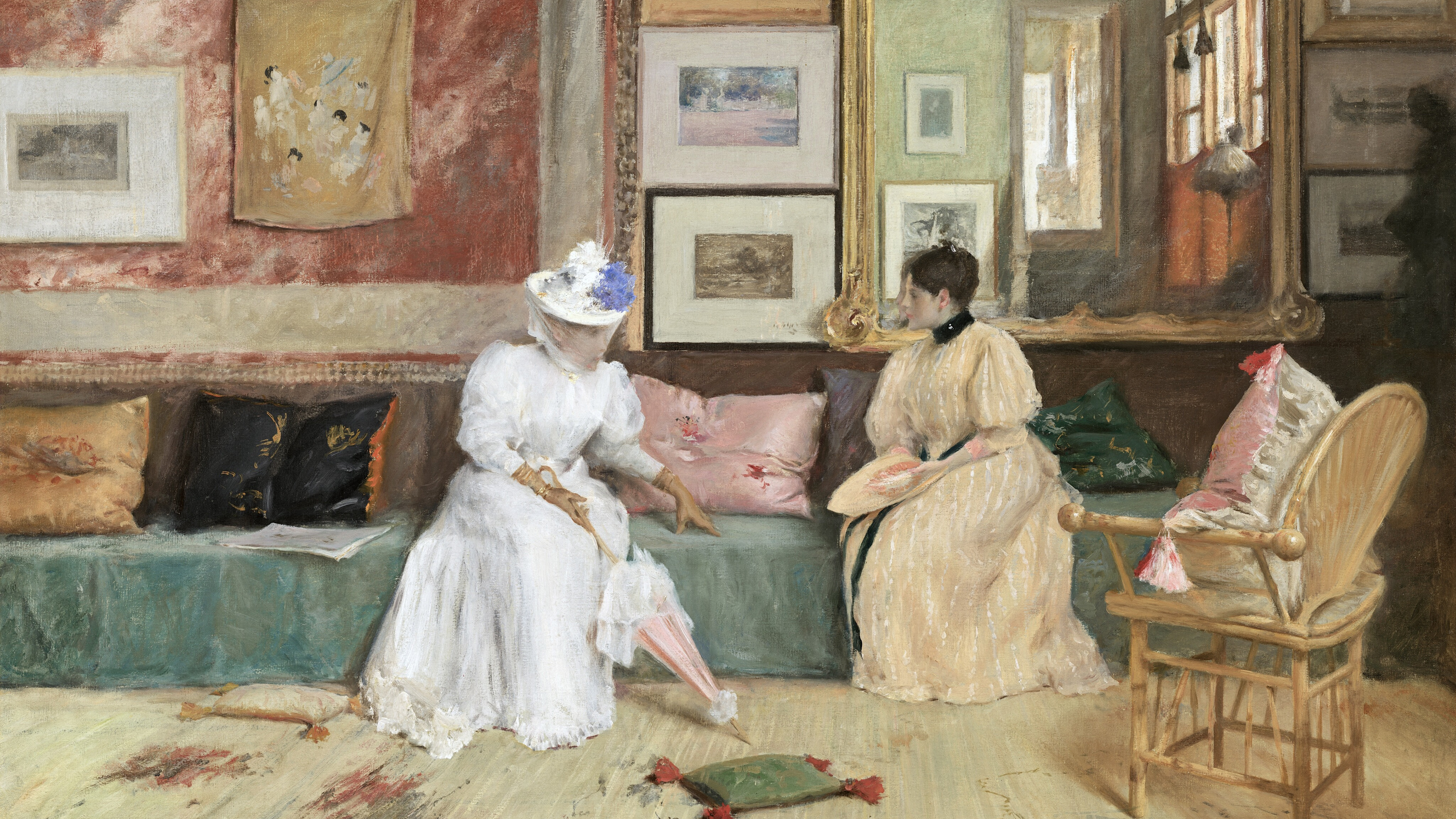
You do not require a dedicated, frame-style television to enjoy ambient digital art. If you own a high-quality standard 4K display, you can use popular streaming devices to hijack the screensaver function, turning a blank screen into a curated gallery.
Setting Up Apple TV 4K
The Apple TV offers a seamless way to display custom art using iCloud integration. (You can find our recommended Apple TV models in the Hardware Studio).
- On your iPhone or Mac, create a specific Shared Album in the Photos app and name it 'TV Art'.
- Save your downloaded 16:9 master files from The Gallery into this album.
- On your Apple TV, navigate to
Settings > General > Screensaver. - Change the Type to 'My Photos' and select the 'TV Art' album.
- Adjust the transition settings to 'Classic' or 'Ken Burns' for a subtle gallery effect, and ensure the delay timer is set to activate shortly after the television is left idle.
Setting Up Google TV & Chromecast
Google's ambient mode operates similarly through Google Photos.
- Create a dedicated album in your Google Photos account and upload your 16:9 artworks.
- Open the Google Home app on your mobile device.
- Select your television or Chromecast device, tap the settings gear, and navigate to 'Ambient Mode'.
- Choose 'Google Photos' as the source and select your dedicated art album.
- Hide personal data overlays (like weather or time) in the settings to maintain a clean, uninterrupted canvas.