
22 September 2026
How to Remove Black Bars from Digital Art on Frame-Style TVs
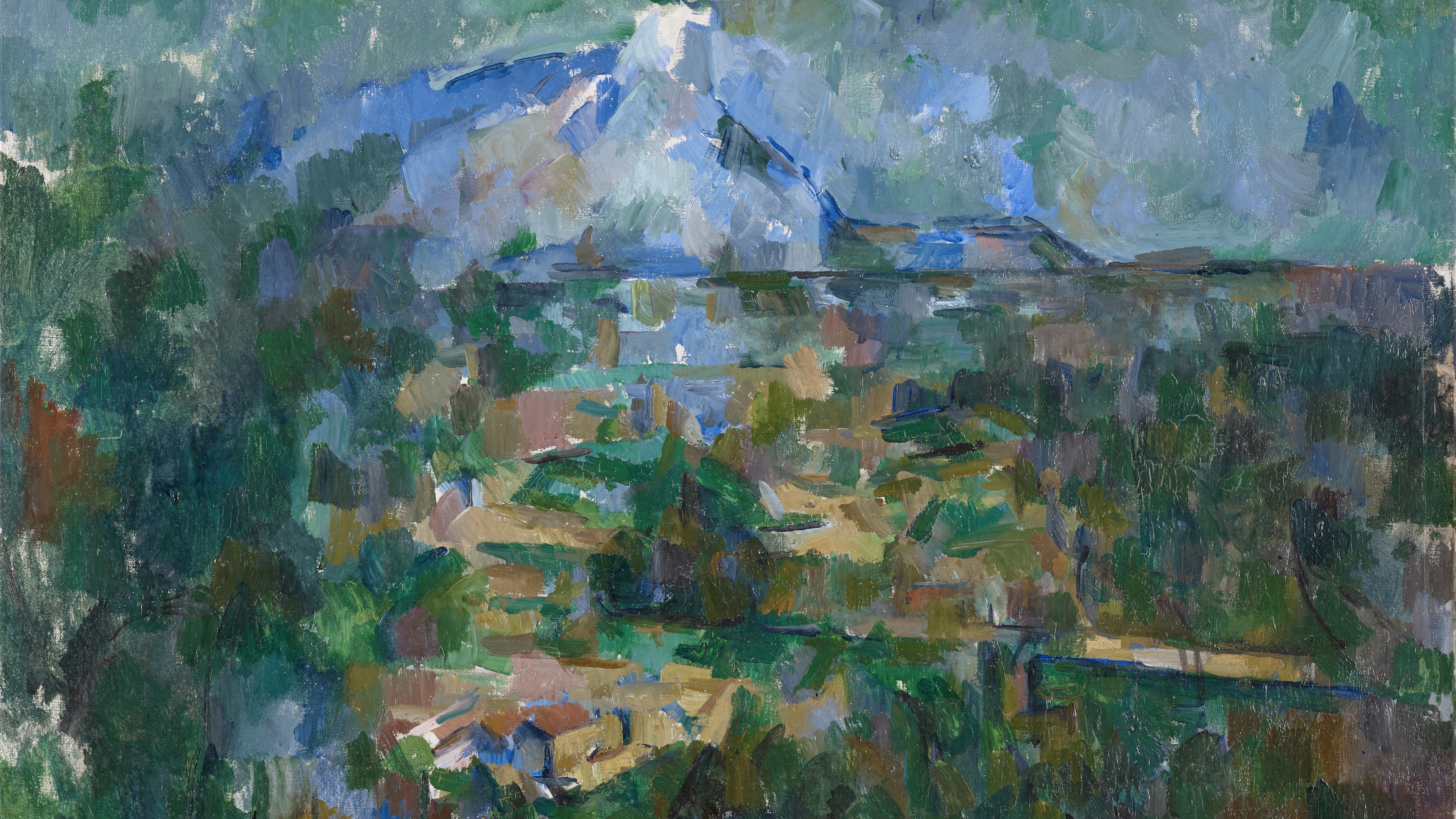
When displaying personal art or photographs on a Samsung Frame or similar screen, unwanted black borders frequently appear on the sides (pillarboxing) or top and bottom (letterboxing). This immediately ruins the illusion of a framed gallery canvas.
Why Black Bars Occur
Televisions feature a fixed widescreen display ratio of 16:9 (or 3840 × 2160 pixels in native 4K). Traditional art and photography, however, almost never use this ratio. Common print sizes—such as 8×10, 4×6, A4, or square compositions—leave empty margins when placed on a widescreen panel. Unless the source file matches the screen's exact proportions, the display defaults to letterboxing to avoid distorting the image.
The Solution: 16:9 Pre-Mastering
To achieve a completely seamless, edge-to-edge finish, an image must be accurately scaled and cropped to 3840 × 2160 pixels prior to uploading. All files within The Gallery are pre-mastered to these exact dimensions, ensuring immediate full-bleed presentation without distortion or manual adjustments.
Using Our Free Frame & Mat Studio
If you want to display your own photographs or digital prints without borders, you can use our built-in Frame & Mat Studio. The tool processes your images locally in your browser to prepare them for your screen:
- Aspect Ratio Nuances: Landscape-oriented images adapt best to television screens, requiring minimal composition loss. Square and vertical (portrait) pieces will lose significant portions of the image if cropped full-bleed.
- Adding Digital Mounts: For vertical or square artwork where cropping would cut out essential details, use the studio's matting feature to add a neutral border, ensuring the final exported file maintains a 16:9 frame.
- 100% Private: Your files are processed entirely on your device and are never uploaded, stored, or sold.
Once formatted, download your file and transfer it directly to your display for a clean, custom art installation.